




















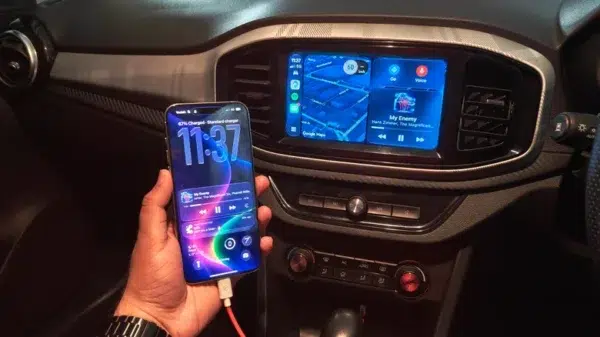










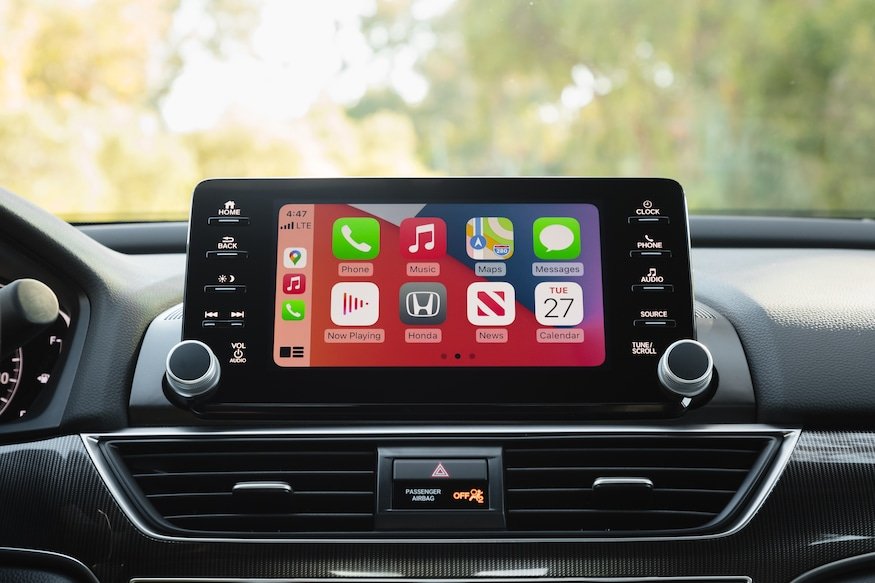
CarPlay, Apple’s in-car infotainment system, brings the power of your iPhone to your vehicle’s dashboard. With its intuitive interface and seamless integration, CarPlay allows you to access essential apps and features while on the road. While Apple restricts customization options, there is one aspect you can personalize: the CarPlay wallpaper. In this comprehensive guide, we’ll walk you through the simple steps to change your CarPlay wallpaper, allowing you to add a touch of personality to your driving experience.
Step 1: Update to iOS 14 or Higher
Before you can customize your CarPlay wallpaper, ensure that your iPhone is running on iOS 14 or a later version. If you haven’t updated your iPhone, head to the “Settings” app, then “General,” and finally “Software Update.” Follow the on-screen instructions to update your device to the latest iOS version, if available.
Step 2: Connect Your iPhone to CarPlay
Connect your iPhone to your car’s infotainment system that supports CarPlay using a USB to Lightning cable. For vehicles that support wireless CarPlay, make sure your iPhone and car are connected via Bluetooth or Wi-Fi. Once the connection is established, CarPlay will launch on your car’s display.
Step 3: Access the App Grid
In the CarPlay interface, locate the App Grid button in the bottom-left corner. Tap this button if you are on the overview screen or have an open app. The App Grid will display all your CarPlay apps.
Step 4: Open “Settings” App in CarPlay
Swipe between the home screens in the App Grid to locate the “Settings” app. Tap on the “Settings” app icon to open it. You can now access various CarPlay settings, including the wallpaper customization option.
Step 5: Choose a Wallpaper
Within the “Settings” app, you’ll find the “Wallpaper” option. Tap on it to see a selection of pre-defined wallpapers. These wallpapers change their appearance based on whether CarPlay is in dark or light mode. Scroll through the available wallpapers and select the one that suits your preferences.
Step 6: Preview and Set the Wallpaper
Upon selecting a wallpaper, you’ll see a live preview on your car’s head unit. If you like the appearance of the wallpaper, tap the “Set” button to apply it. In case you change your mind, tap the “Cancel” button to choose a different wallpaper.
Important Note: Custom Photo Use in CarPlay
As of the time of this writing, CarPlay does not support the use of custom photos as wallpapers. You can only choose from the selection of wallpapers provided by Apple. However, this customization will not affect your iPhone’s background, ensuring your personalization remains separate.
Conclusion: A Personal Touch to Your CarPlay Experience
Apple’s CarPlay offers a seamless and user-friendly driving experience, and the ability to change the CarPlay wallpaper adds a personal touch to your infotainment system. By following these easy steps, you can quickly customize your CarPlay wallpaper to suit your style and preferences. Enjoy your journey with a personalized CarPlay interface that reflects your unique taste.