






















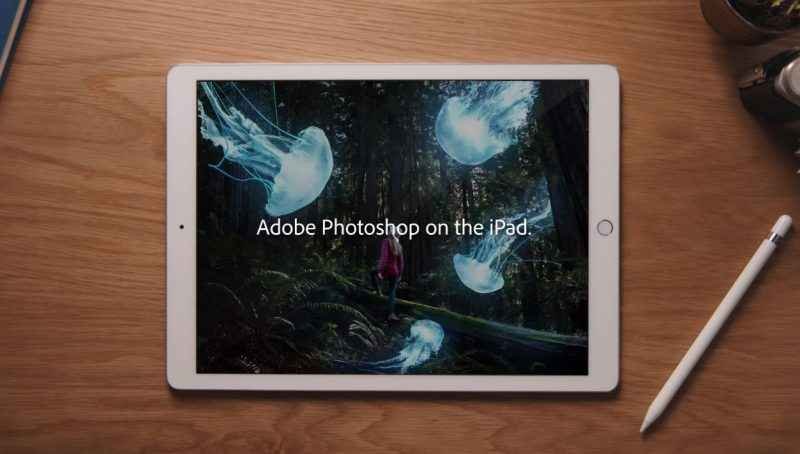
Adobe announced the Adobe Photoshop for iPad around a year ago. Now, the company has finally launched the Photoshop. It is compatible with all your files.
This launch has come at a perfect time for the company. The company’s transition into a subscription-based model has been quite successful. It is also complete with cloud storage and multi-platform application. Thus, the ability to view, opening, and editing the stored files on the cloud makes sense. It is made for both beginners and professionals. However, if you are new to photoshop software, you should read the beginner’s guide here.
Photoshop for iPad is a subscription-based product. This makes it a direct competitor with other editing software, like Affinity Photo.
The price of the app is $9.99 for Adobe’s Photography Plan. This includes not just Photoshop for iPad but also Photoshop on the Lightroom Classic and the desktop. Moreover, there is also a pricier All Apps bundle package.
Design:
Adobe Photoshop for iPad has a promising interface. It is a cutback of the desktop version. However, it is quite comfortable, and many parts look quite promising. The left-hand side contains familiar-looking controls, like Clone Stamp and brushes or Rotate tools. On the other hand, the opposite side of the screen contains the Layers panel.
All in all, the app is quite responsive. It will easily open a 1 GB PSD file with high-resolution layers and run smoothly on the iPad. There might be occasional crashes, but there is a robust save feature to help with this issue.
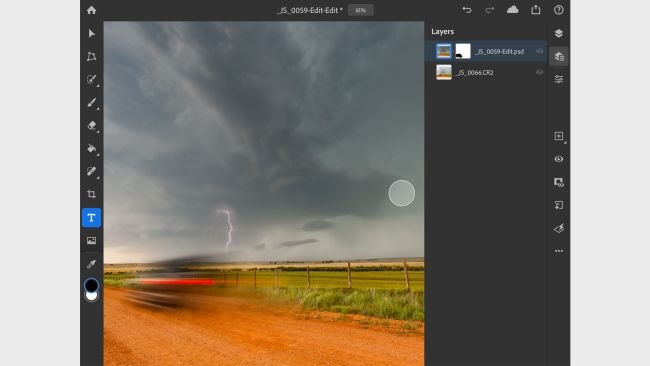
Getting images into Photoshop for the iPad is quite easy and straightforward. You can import the iPad’s camera roll or take pictures with the help of an on-board camera. Professionals can load work from their Creative Cloud storage. It works well, and Photoshop saves your content.
There are many options for getting images out of photoshop. Just tap the “Share” button at the top of the screen, and you can select to make JPEG, PSD, TIFF, or PNG files. There are also many compressions and qualities available for each of these. After that, you can send the data through messages or mail, save to your camera, or send it to other services, like Dropbox or Files.
Tools: What’s there and what’s not:
There is support for layered PSD files. Almost all the professional Photoshop users use layers in the data that they work on. The implementation of layers here is quite excellent and up to the mark. Other than creating new layers, you can make layer masks and adjustment layers. You can also adjust the blending modes and capacity, as well as perform layer management, like flattening images or merging layers.
However, the remaining tools are quite ordinary. Using the layer masks doesn’t mean much unless you have powerful automatic brushes present in the Desktop version. Although the iPad has a Quick Selection Tool, it isn’t as accurate as using the Refine Edge and Pen Tool. You can make quick and dirty cuts, but forget making repro-ready cut-outs.
Other aspects are quite applauding, like it has healing and cloning tools. They work fine; however, for any above-average work, you will at least need an Apple Pencil.
Photoshop doesn’t feature a dodge or burn tool. There are no smart filers or other filters yet. However, the company might introduce these features soon. Text support is quite bad. You can choose a font, its weight and size, and paragraph alignment. However, there is no-subscript, no super-script, no line spacing, and no kerning.
Our Verdict:
Photoshop for the iPad isn’t as good as the Desktop version. It has a limited tool selection and no filters yet. However, you shouldn’t forget the good aspects, like it opens large files with all layers and runs well on the iPad. Still, we will say that the current version for the iPad isn’t at par with Affinity Photo. You should watch for its updates keenly because the fully updated version will be better than its competition.